I’d like to suggest two improvements to the stock transfer workflow in the Breww mobile app:
1. Manual Quantity Entry When Transferring Stock Currently, when transferring items (e.g. cases or kegs), you have to scan each one individually. There’s no option to simply enter a number manually. On top of that, if too many items are accidentally scanned, the only way to correct it is to revert the location and start the entire transfer again — which is time-consuming and frustrating.
It would be great if the app allowed you to manually input the number of items you want to transfer, rather than requiring individual scans.
2. Bulk Transfer by Scanning One Item If you’re transferring 40 kegs from a pallet, you currently have to scan the same keg 40 times. There’s no way to scan one item, enter a quantity, and have the system automatically select that number of containers to move.
The ideal solution would be: scan one container, enter the desired quantity, and let the system handle the rest — automatically pulling the correct number of items from that location.
These changes would significantly speed up stock transfers and reduce the chance of errors, especially when dealing with large pallets or bulk movements.
Thanks for the suggestion, Sylwia, and I’m sorry for not getting back to you sooner.
I’m sorry if I’m missing something obvious, but what is the difference between your two requests - are they not the same thing (scan once and enter a quantity)?
And I believe we actually already do what you’re asking for, where applicable:
Quantity prompt not shown (always move just one)
Tracked containers with Breww container barcodes - individual items, always move just one
Pallets - moved as a unit, always just the one pallet
Non-returnable containers where only one is available at the source location
Quantity prompt shown (user enters amount)
Smallpack products - when scanning a product barcode, GS1-128, batch number, or SP-prefix container barcode for a smallpack product type
Non-returnable containers with multiple available at the source location
They’re not quite the same. With kegs, when you scan, you’re not able to clearly see which specific keg or batch is being transferred. If the camera accidentally picks up the wrong item, it’s not obvious until you go back and check the system.
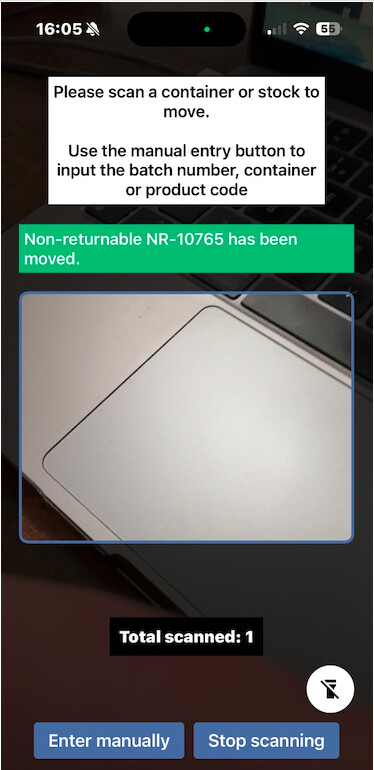
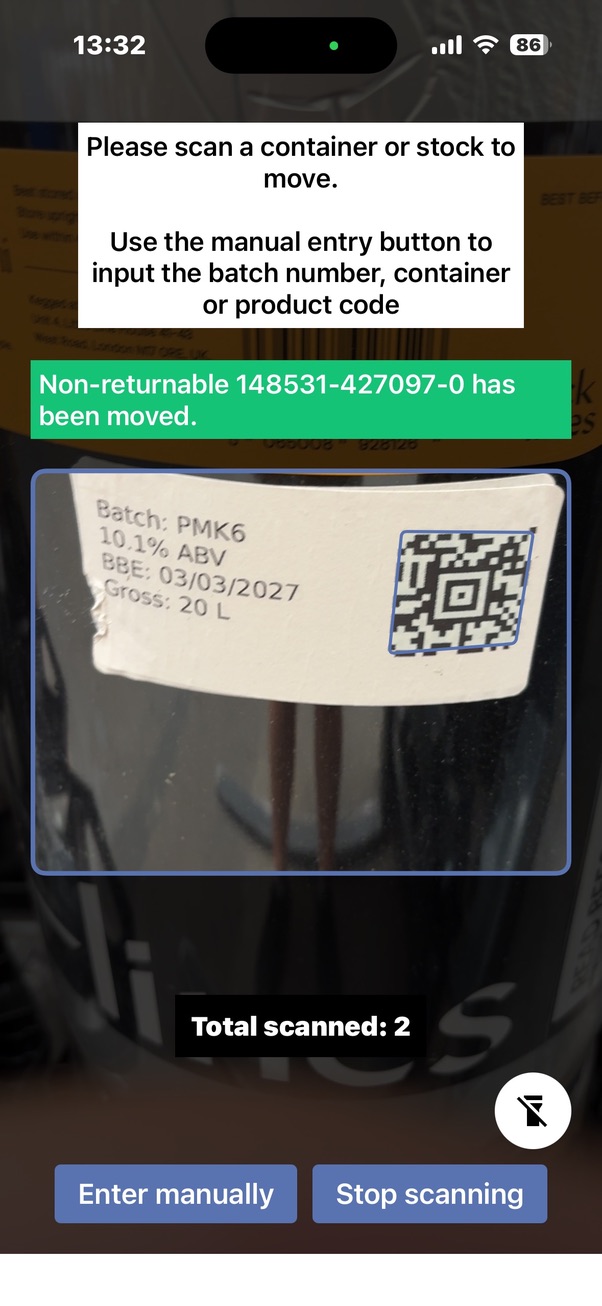
I do agree there’s been some improvement, as you can now see the quantity of non-returnable products being transferred (see photo below). However, the actual product name or batch isn’t visible at the point of transfer.
We’ve also looked at transferring by batch, but that option doesn’t seem to be working.
A potential improvement would be to introduce a similar option to what we already have in the system — allowing users to select from available batches and clearly see which one is being transferred before confirming.
There’s a lot to take in here, and in all honesty, I’m struggling to know how best to turn your comments into an actionable feature request. Would it be helpful if, after scanning something, you were shown a confirmation dialogue that explained what was about to be moved and allowed you to approve the movement before it occurred?
If this is what you’d like, let me know, and I’ll update the thread to make it clear.
And regarding this comment:
There are no known issues affecting this feature. If you still think something isn’t working right, please contact our support team with a detailed example of what you’re doing and what didn’t work properly so we can look into it.
It’s important that we keep our feature requests list clean and organised. Our questions on this request have not been answered, and it’s not possible to move this request forward without more information.
If you still need this, please feel free to open a new request with the required extra information.
It has been incredibly busy, so apologies for the delayed reply.
Yes, that would be very helpful. It would also be great if the product name and batch number could be displayed.
If the system automatically selects the first container numbers, users could simply enter the quantity instead of scanning the same keg 40 times. As the QR code is the same for all kegs of the same product batch and is not unique to each individual keg, this would make the process much quicker and more efficient.
No problem, Sylwia. I’ll keep this open, thanks for getting back to me.
We already prompt for quantities where we feel we can, but maybe there is a situation we’ve missed. Could you attach a photo of an example barcode that you’re scanning? You’ve said “As the QR code is the same for all kegs of the same product batch”, so I just wanted to check exactly what barcode you are using to ensure we are prompting for quantities where we can.
If you can give me an example barcode, I’ll make sure this is thoroughly checked. If we’re not prompting for quantities when we could be, we’ll resolve this. As explained in my post above, it’s quite complex regarding the situations where we do and do not prompt for quantities currently!
I’m sorry that this has gone on for so long already, @sylwia-paluch, and I understand that you’re busy (we are too, so we totally get it).
Please give me an example barcode (see my last message) so that we can look into this for you. We need this to try to make some progress on this for you. Thank you.
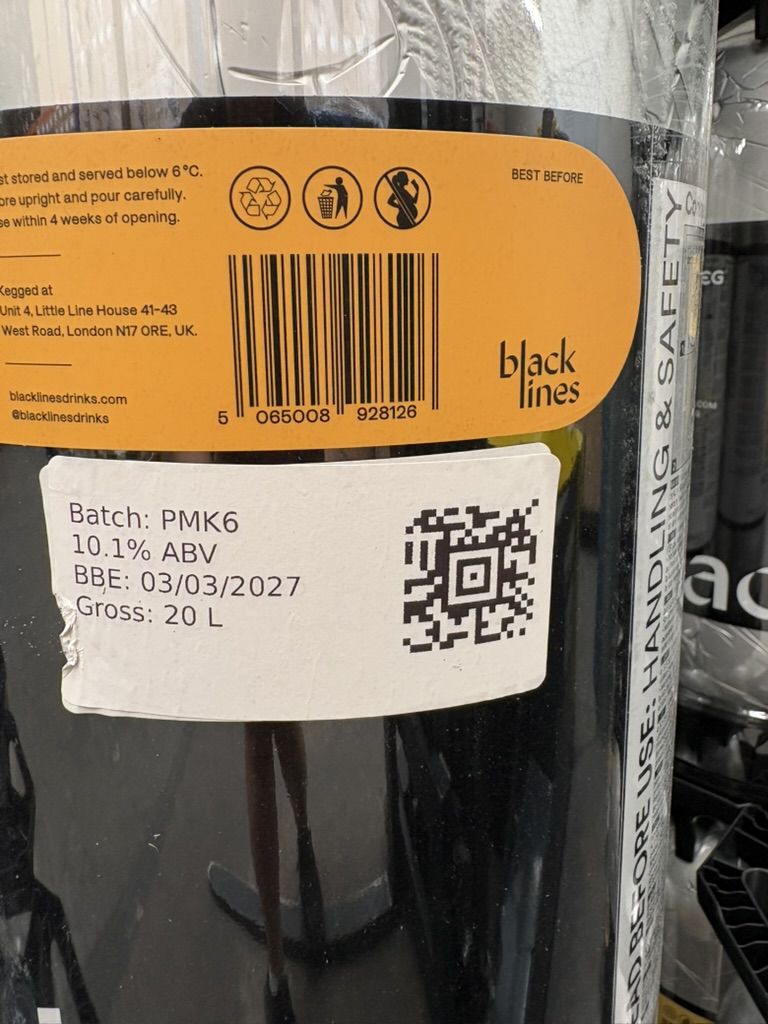
Please see the attached photos of our Breww labels, which you’re already familiar with.
To move stock between locations, we scan the QR code on the label, and the system automatically transfers the stock. While testing this, I accidentally scanned the same product twice, but unfortunately I don’t remember which specific product it was. I’m not sure whether that’s relevant.
The main issue I’m trying to solve is making stock transfers as easy and as clear as possible for the warehouse team. Ideally, when scanning the same QR code more than once, the system would prompt the user to enter the quantity being transferred, rather than requiring multiple scans or risking duplicate scans, and also show the batch of the scanned product, rather then container number, as the batch is what we use to recognise the products.
If there’s a solution that could improve this process, it would make stock movements much more efficient and reduce user error.
It looks like you have the “Use the product and batch combination barcode on stock labels” option enabled in Label settings. We’ll dig into this for you and see if we’re not prompting for a quantity here when we should/could be.
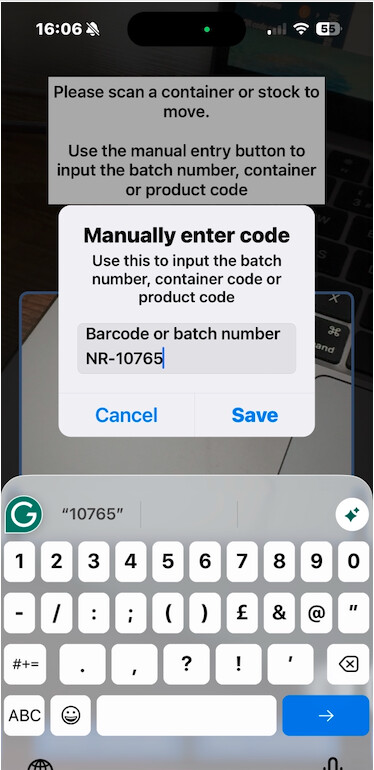
Sylwia, we’ve updated this so it should be prompting for a quantity now when you scan a product and batch combination barcode Can you let us know if you still scan a barcode where you think a quantity should be prompted, but it isn’t?
Thank you for your patience and help with this We got there in the end!
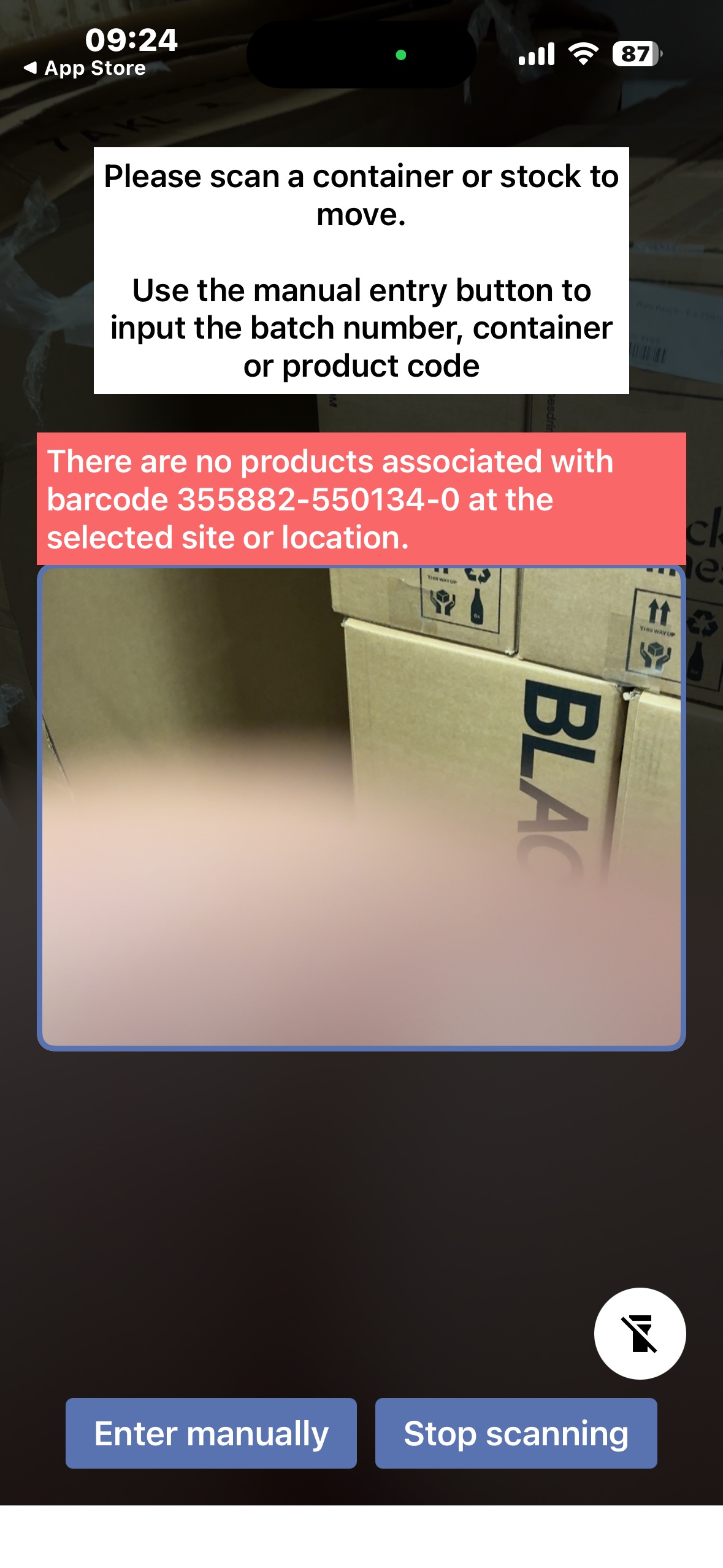
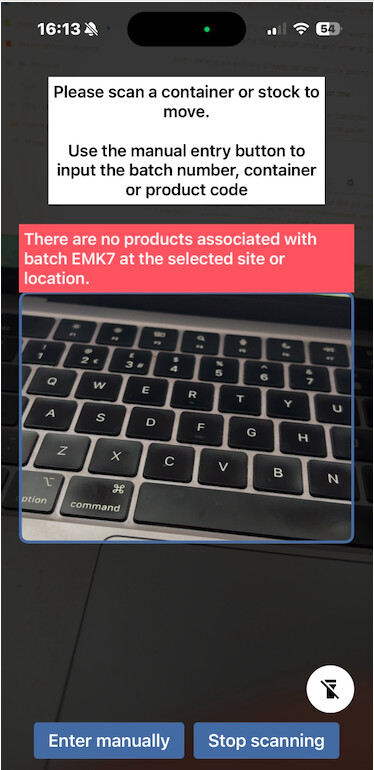
Everything is working, apart from one barcode that isn’t scanning: Rum Punch 6 x 750ml. I’m not sure why, because it’s at this location. Please see the attached screenshot.
Maybe that is a bit too much, but I will give it a try.
At the moment, the system doesn’t recognise the batches because we have the same QR format printed on all products. It is showing the total quantity in the location instead of just the quantity for one batch (2 batches, 2 pallets will show the total instead of separate).
Is there a way to print the labels by batch, so when I transfer or assign the stock, I can also see the batch number and the qty of the batch?
This might need to be a new ticket or feature request — to generate a different QR code for each batch, rather than having to reprint the same label each time.
Thanks, Sylwia. These labels are already per-batch barcodes, so that shouldn’t need a new feature request. But if you’re reprinting the same label each time, rather than generating them in Breww for each batch, that will mean they have the same barcode (specifically relating to whichever batch you first generated it from Breww using).
That error message is likely showing because you’re re-printing old barcodes and there is indeed no stock in that location of the batch that the barcode relates to.
If you still need help with this, I think the best option here is to raise a support ticket with our support team (rather than try to handle it on a feature request thread). You can use this link to raise a ticket directly to the team if you need to. Thank you.
 Can you let us know if you still scan a barcode where you think a quantity should be prompted, but it isn’t?
 We got there in the end!